
Blurit Studio
Anonymization editing tool that supports both automatic & manual detection
Easily ensure compliance by anonymizing the elements that matter most in your videos
Get started from $0
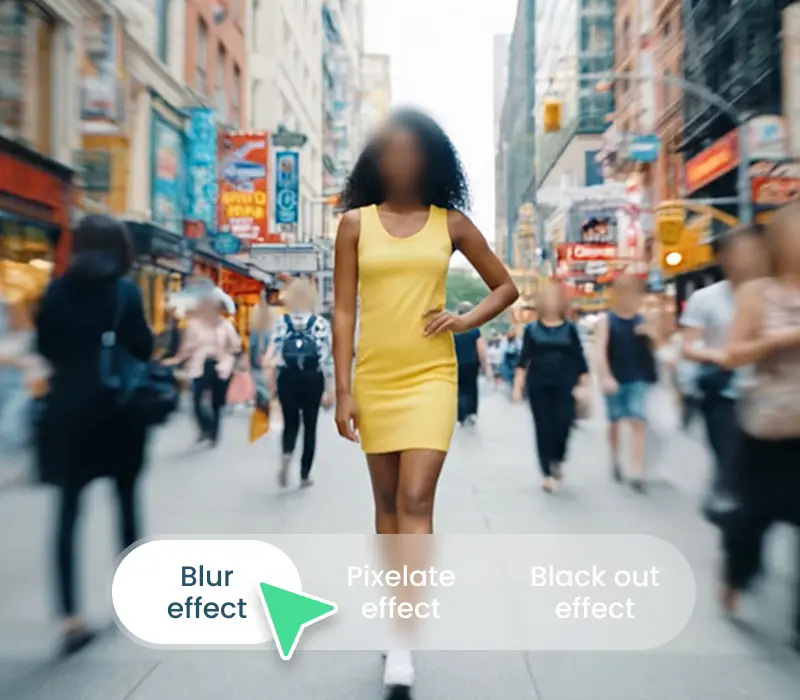
Our self-hosted version natively includes an editing platform that gives you seamless access to your images and videos through BlurIt Studio, allowing you to edit them directly within your own workspace
Manual Editing
Time Savings
Easy to Use
Quality Control
Blurit Studio
Anonymization editing tool that supports both automatic & manual detection
Blurit Self-Managed
Process large data volumes directly on your own infrastructure
Flexible & Scalable
Built to handle evolving requirements & increasing workloads
Compliant
GDPR-compliant & supports CCPA, APPI, PIPL
Don't wait any longer! Get started free
Self-managed, Online, or accessible via our API, our comprehensive offering adapts to your functional and technical needs
Easily and quickly anonymize your images & videos using our online platform.
Maintain full control by deploying Blurit directly on your own infrastructure.
High-performance API for large-scale image & video anonymization.
Organize and simplify the processing of your access rights requests.
Access BlurIt features directly within your Adobe & Avid software.
Kantar IBOPE Media Brazil requires advanced anonymization capabilities to meet their demanding workflows.
Their key needs include:
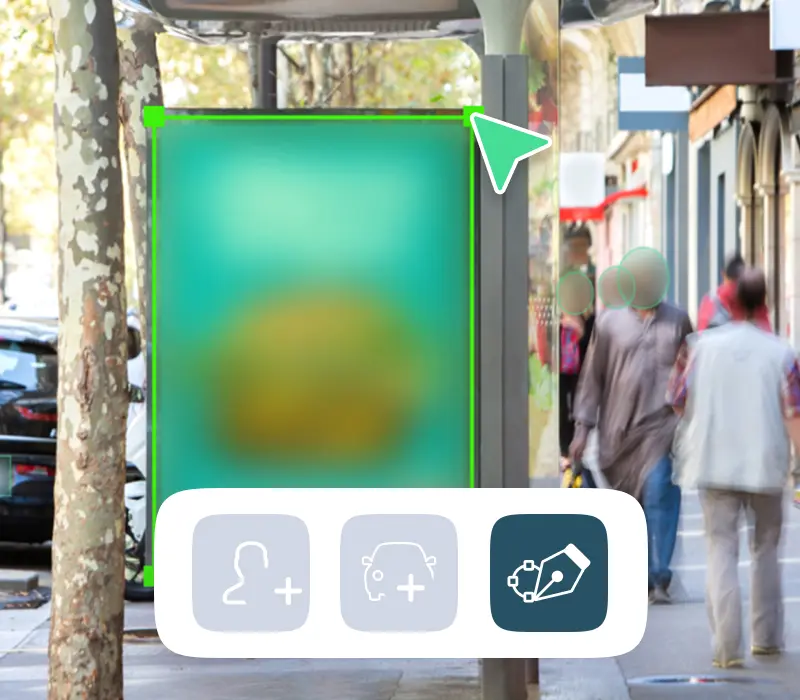
“The solution requires robust blurring performance in edge cases like low-light nighttime scenes, along with support for blurring additional objects such as billboards”
Blurit meets these needs by offering:
FAQ
Find all the answers to questions about Blurit, for both functional or technical aspects. If you do not find the answer you are looking for, feel free to reach out to us via our contact page.
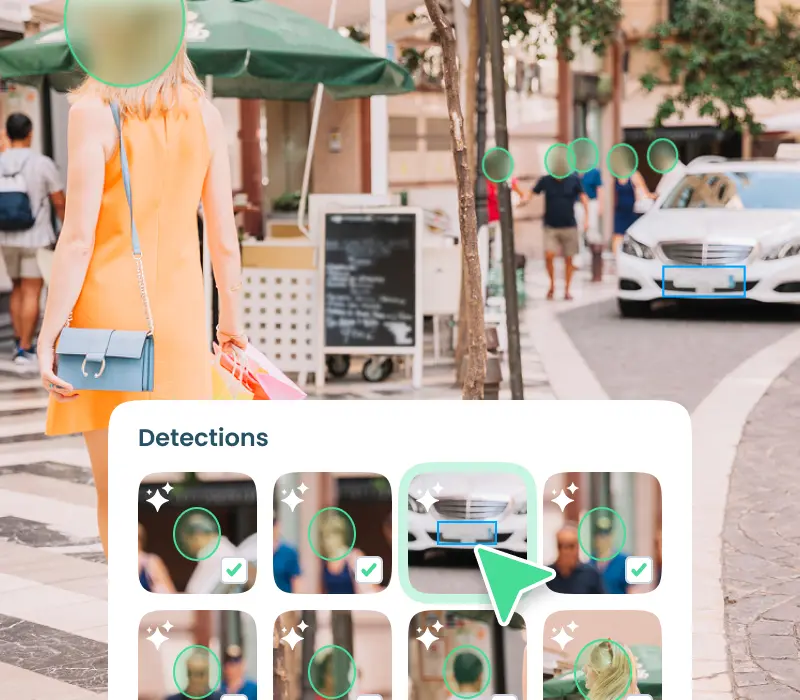
Blurit Studio’s Advanced Editing lets you review and refine all AI detections after processing your video. Detected faces and license plates appear as green bounding boxes, allowing you to activate/deactivate, resize, or change detection types (e.g. from face to plate), even frame by frame.This gives precise control over video and image redaction, ensuring better compliance and accuracy than pure automation.
Absolutely. Blurit Studio allows you to manually add new detections, including additional faces, plates, or other identifiers like street numbers or documents. You can also deactivate unwanted detections either by clicking the box or using the sidebar controls.This customization is ideal for sensitive cases where default AI detection may miss or misclassify elements.
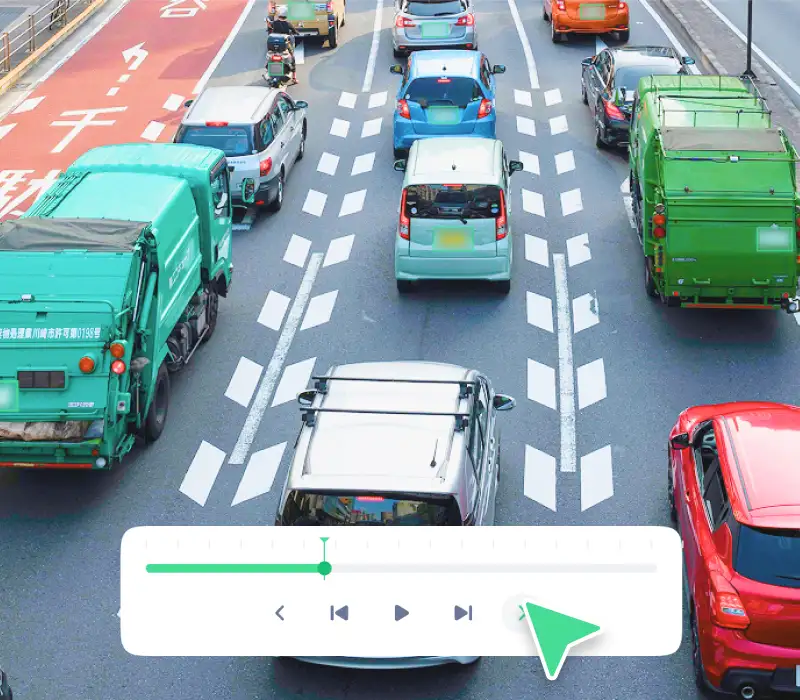
Blurit Studio provides granular control over each redaction zone, allowing users to adjust, move, resize, or delete any blurred area across individual frames. This is particularly useful in complex videos—such as courtroom recordings, classroom footage, or multi-subject interviews—where full automation may not be precise enough. With manual override tools and timeline navigation, Blurit ensures that each redaction is intentional and legally compliant.